Accruent Lucernex 26.09 Release Notes
We're delivering this automatic upgrade to these environments:
-
Dedicated TRAIN: September 16, 2026
-
Shared TRAIN + UAT: September 11, 2026 and September 23, 2026
-
Production: September 25, 2026
The upgrade includes:
-
Workflow: Take workflow actions from a response to a workflow generated email.
-
Payment transaction custom fields: Store more custom data on payment transactions with expanded client-defined fields.
Workflow
LUC-20485, LUC-20012, LUC-20011, LUC-20010
Configure individual workflow step actions to be taken directly from email replies. When this is enabled for your firm, a new Take action from email reply option appears in the Manage Work Flow Step Action window. Select this option to allow users to complete the step by replying to the workflow email. Action Name defines the message sent back to Lucernex to carry out the action.
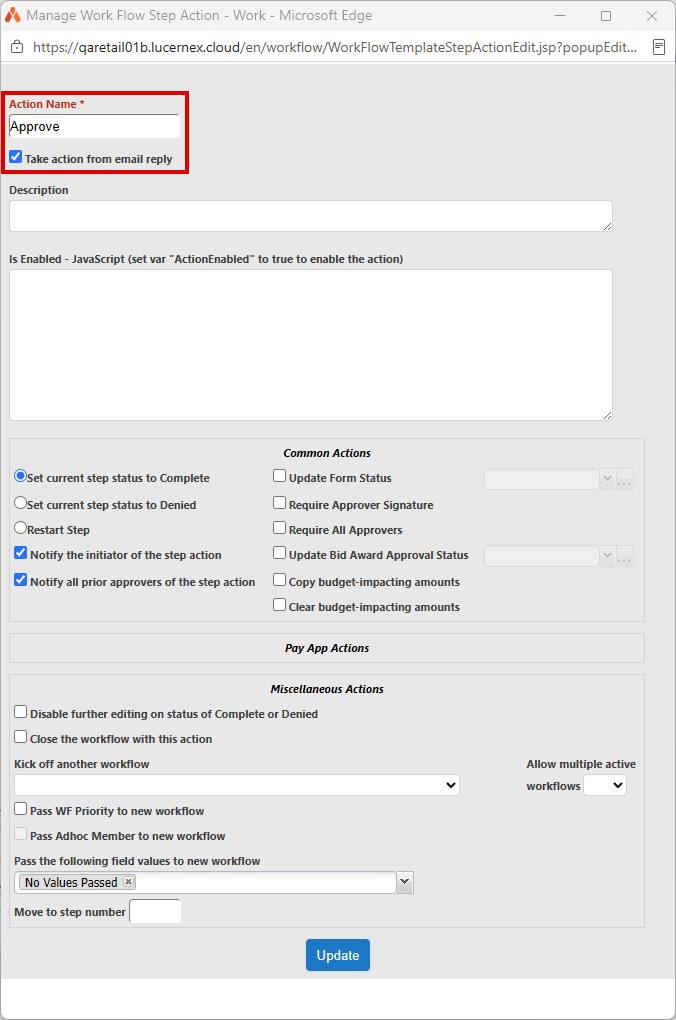
This gives your team the flexibility to act on workflow notifications without signing in to Lucernex, which saves time and keeps your processes moving.
 Limitation
To get started, contact Accruent Support to enable the actionable emails feature for your firm. Once active, configure email actions on any workflow step action through the existing edit page.
-
Go to Admin > Manage Work Flows.
-
Edit each workflow step action that you want to enable action from an email reply:
-
Expand the workflow and then select edit in the row of the action.
-
In the Manage Work Flow Step Action window that opens, enter an Action Name that reflects the action sent to Lucernex by email. For example, APPROVE, or REJECT.
-
Select Take action from email reply
-
Select Update to close the Manage Work Flow Step Action dialog.
-
-
Select Update to close the Edit Step dialog.
When you enable Take action from email reply, Lucernex validates that the action does not require user input. Actions that require additional input fields cannot be completed from a simple email reply. If the action is ineligible, an inline message explains why the option is unavailable.
If you are the recipient who is to take the action, Lucernex sends you an email with a link for each eligible action your administrator has configured for the workflow step.
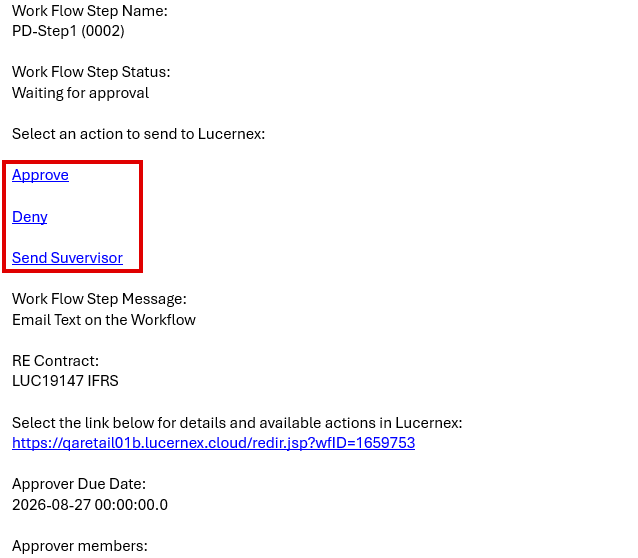
-
In the Select an action to send to Lucernex list, select the link for the eligible action you want to take.
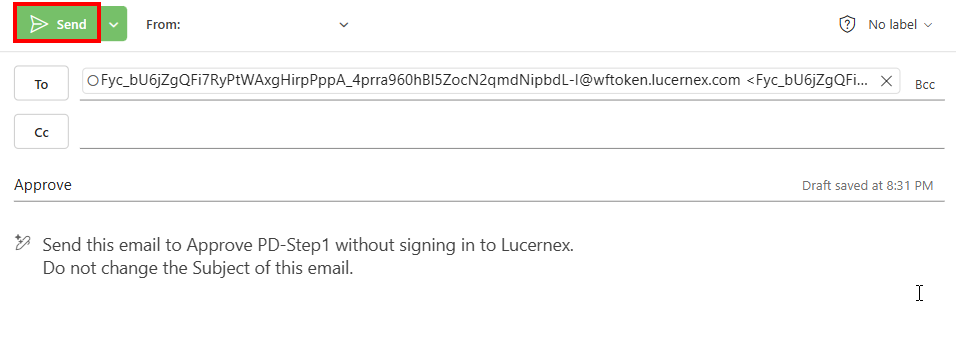
A draft confirmation email opens in your default email app.
-
Select Send to take the action.
This takes the action in Lucernex immediately without requiring you to sign in.
Lucernex prepopulates the Subject with the action. Do not change the Subject of the email as this prevents Lucernex from taking the action.
The email action is only valid once and cannot be reused once you have sent it.
Payment transaction custom fields
LUC-20397
Store more custom data on payment transaction records with the new payment transaction fields. Add up to 10 custom fields for currency, dates, and text to payment transactions. This helps you track the specific financial and operational details your business needs. Use the new fields to:
-
Track additional monetary values alongside standard payment amounts, such as adjustments, allocations, or internal cost codes.
-
Record extra dates, such as when a payment was approved or processed.
-
Capture supporting text for reference numbers, comments, or integration identifiers from external systems.
Apply the fields to custom page layouts and custom reports. Use the Data Dictionary to explore all available fields.
Also, use the payment transaction import to upload these custom values in bulk.
Database schema changes
We added new fields to the database schema to support enhancements in this release. Update your page layouts to display new fields on customized pages.
Look for  in the lower-right corner of the dialog or window to find customized pages.
View the Data Dictionary for a full list of all fields in your firm.
Payment transaction custom fields
We added these fields to support additional custom fields for payment transactions.
PaymentTransaction
|
Field Name |
Type |
UI Label |
Description |
|---|---|---|---|
|
ClientAmount4-10 |
Currency |
Client Amount #4-10 |
Client-defined currency field for recording a custom currency value on the payment transaction. |
|
ClientDate4-10 |
Date |
Client Date #4-10 |
Client-defined date field for recording a custom date value on the payment transaction. |
|
ClientText4-10 |
Text |
Client Text #4-10 |
Client-defined text field for recording a custom text value on the payment transaction. |
PaymentTransactionFullImport
|
Field Name |
Type |
UI Label |
Description |
|---|---|---|---|
|
ClientAmount4-10 |
Currency |
Client Amount #4-10 |
Client-defined currency field for importing a custom currency value on the payment transaction. |
|
ClientDate4-10 |
Date |
Client Date #4-10 |
Client-defined date field for importing a custom date value on the payment transaction. |
|
ClientText4-10 |
Text |
Client Text #4-10 |
Client-defined text field for importing a custom text value on the payment transaction. |
Placeholders
We added the following placeholder objects, with fields, for features planned for a future release:
-
PunchList
-
PunchListAssignee
-
PunchListTask
-
PunchListTaskAssignee
These objects and fields are not currently available for use.
Improvements and issues fixed
|
Summary |
Reference # Case |
|
|---|---|---|
|
Cost tracking |
The change order form now correctly displays positive math field values in standard text and applies red formatting only to negative values. |
LUC-20236 |
|
Covenant import |
The covenant import now correctly adds new records and updates existing records across different contracts within a single import file. |
LUC-20271 |
|
Dashboard |
Dashboard report filters now correctly persist when you navigate away from the page and return. You no longer need to reapply the filter each time. |
LUC-19927 |
|
|
Lucernex now generates PDF attachments for email letters. You can now send and receive report attachments in PDF format. |
LUC-20345 |
|
Equipment contract |
Equipment contracts now display the bulk termination prompt when you create schedules with inactive assets for all contract sizes. |
LUC-13828 |
|
Layout |
Math field expressions in Manage Page Layouts now correctly retain the full field names and math operators after you save and close the configuration window. |
LUC-19915 |
|
Localization |
Spanish translations now correctly display throughout the interface, including the Close button on forms and workflows. |
LUC-18314 |
|
Part package |
If there are 50 or more vendor records, Lucernex now displays all available vendors when you select a vendor for a part package. |
LUC-20573 |
|
Printable view |
The printable view now displays the selected summary page layout after you return from another tab. |
LUC-18798 |
|
Reports |
The ASC 842 Fiscal Details Excel export now correctly includes all FX-translated columns when you export the custom list data with the Calculate FX Impact option selected. |
LUC-19789 |
|
Reports |
Delimited reports now correctly export data without trailing commas. This prevents extra blank fields when you import the data into spreadsheets or other external tools. |
LUC-19832 |
|
Schedule |
Schedule task imports now correctly update start and baseline dates for imported tasks. |
LUC-18204 |
|
Workflows |
Workflow titles now correctly display all referenced string field values calculated using custom JavaScript. |
LUC-20974 |